
Internal linking—it’s a necessary evil. Tedious, time-consuming, and sometimes downright boring, but absolutely essential for your website’s success. It’s one of those tasks we all know we need to do, but end up putting off because of how monotonous it can get.
That’s where this article comes in.
As a website owner and agency co-founder managing dozens of client sites every month, I’ve had my fair share of struggles with internal linking. I found the solution in a tool called Link Whisper—a powerful WordPress plugin that has completely transformed how I approach internal linking. Its fast and easy.
![Link Whisper Internal Linking Plugin [The MOST In-Depth Tutorial & Review]](https://weekendgrowth.com/wp-content/plugins/wp-youtube-lyte/lyteCache.php?origThumbUrl=https%3A%2F%2Fi.ytimg.com%2Fvi%2FHevyTdC7ZMM%2F0.jpg)
I’m going to show you exactly how to leverage it to streamline your internal linking efforts, save you hours of work, and ensure your website is optimized for better rankings.
Let’s dive in. And, if you read to the end of this guide, I have a discount code for you!
Quick Navigation
- Why Internal Linking is Crucial for SEO Success
- How to Use Link Whisper in WordPress
- Step 1: Install and Set Up Link Whisper
- Step 2: Advanced Settings That Will Save You Time
- Step 3: Leverage Google Search Console Data
- Step 4: Visual Link Maps: A Game-Changer for SEO
- Step 5: Automate Keyword-Based Internal Linking
- Step 6: Audit Your Internal Links and Fix Mistakes
- Step 7: Add Internal Links to Existing and New Posts
- Step 8: Reporting Features You Should Be Using
- Step 9: Hand Off the Task to an Assistant
- Best Practices for Internal Linking
Why Internal Linking is Crucial for SEO Success
Let’s face it—internal linking isn’t just something SEO experts talk about for fun. It’s one of the most important ranking factors that often gets overlooked. Sure, it can be tedious, but its impact on your site’s SEO performance is a lot more than you might think.
Distribute Link Equity
First off, internal links help distribute what’s known as “link equity” or “page authority” throughout your site. In simple terms, every page on your website has a certain amount of SEO value, and linking between your posts allows you to share that value with other pages.
This is especially important for boosting the rankings of less authoritative pages. Got a blog post that’s driving tons of traffic? Use internal links to funnel some of that SEO juice to pages that could use a boost.
But that’s just the beginning.
Improve Crawlability
Internal links also improve how search engines crawl your site. Google’s bots navigate your website by following links—both internal and external. A well-structured internal linking system ensures that search engines can easily discover all your content, helping them understand which pages are the most important.
Without internal links, some of your posts might remain hidden, which means they won’t get indexed, and in the SEO world, if Google doesn’t see it, it doesn’t exist.
And let’s not forget the user experience.
Improve User Experience
Internal links guide your visitors through your website, keeping them engaged and encouraging them to explore more content. The longer someone stays on your site, the better signal it sends to Google about your content’s value.
Plus, by directing users to related posts or valuable resources, you’re creating a seamless experience that makes it easier for them to find what they’re looking for—another factor Google considers when ranking sites.
And we now know that improved user metrics like time on page and bounce rate effect your rankings, thanks to the leaked documents around Google’s algorithm.
So, while internal linking might feel like a chore, the payoff is worth it: higher rankings, better user engagement, and a site structure that both search engines and visitors love.
How to Use Link Whisper in WordPress
Here is exactly how I use the Link Whisper WordPress plugin to quickly add an update internal links to my blog content.
Step 1: Install and Set Up Link Whisper
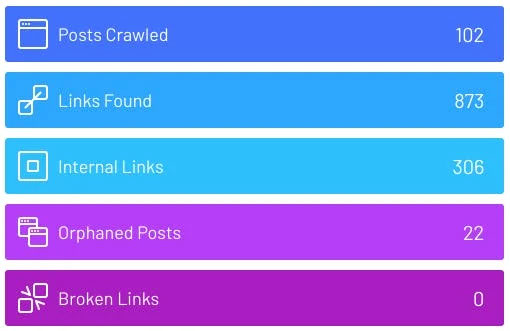
If you’re new to Link Whisper, setting it up is straightforward. Once installed, the first thing you’ll want to do is run a link scan. This scan will help you identify:
- Internal links: How well your posts are internally linking to one another.
- Orphan posts: These are posts without any internal links pointing to them (which you should fix immediately).
- Broken links: Quickly identify and repair broken internal links that could be hurting your site.
Even if you’ve already been using Link Whisper, make sure to frequently run these scans to catch new posts or any changes that might have slipped through the cracks.
Step 2: Advanced Settings That Will Save You Time
Most people skip over Link Whisper’s advanced settings, but tweaking a few options can make a world of difference:
- Open internal links in a new tab: Depending on your site strategy, you might want internal links to open in new tabs to keep visitors on your site longer.
- Ignore certain words: Is your site repeatedly suggesting irrelevant words for internal linking? Add those to the ignore list to refine your suggestions.
- Optimize anchor text: Don’t just accept generic anchor text. Adjust the text to be more targeted and relevant to the post you’re linking to. For example, instead of linking to an article with vague text like “click here,” customize the anchor text to include important keywords like “best practices for SEO.”
Step 3: Leverage Google Search Console Data
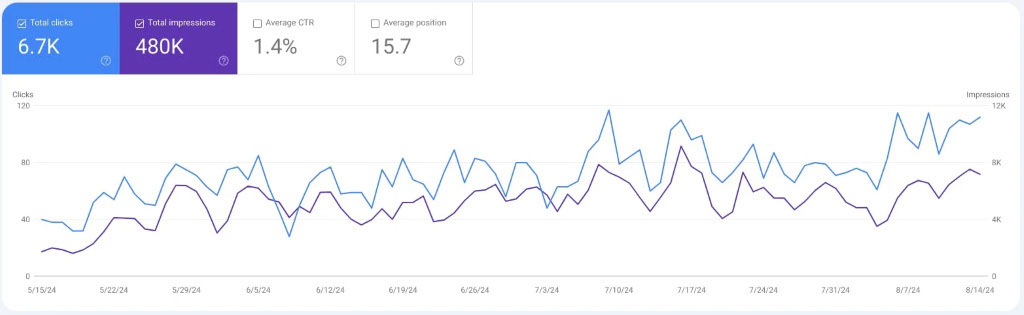
If your site is getting a fair amount of traffic, I highly recommend integrating Google Search Console with Link Whisper. Why? Because GSC pulls keyword data directly from your site’s performance, and when paired with Link Whisper, it can help you prioritize linking to pages that are already getting attention in search results. This kind of precise targeting allows you to funnel even more authority to those pages, boosting their rankings.
Step 4: Visual Link Maps: A Game-Changer for SEO
Now, this is where things get really exciting.
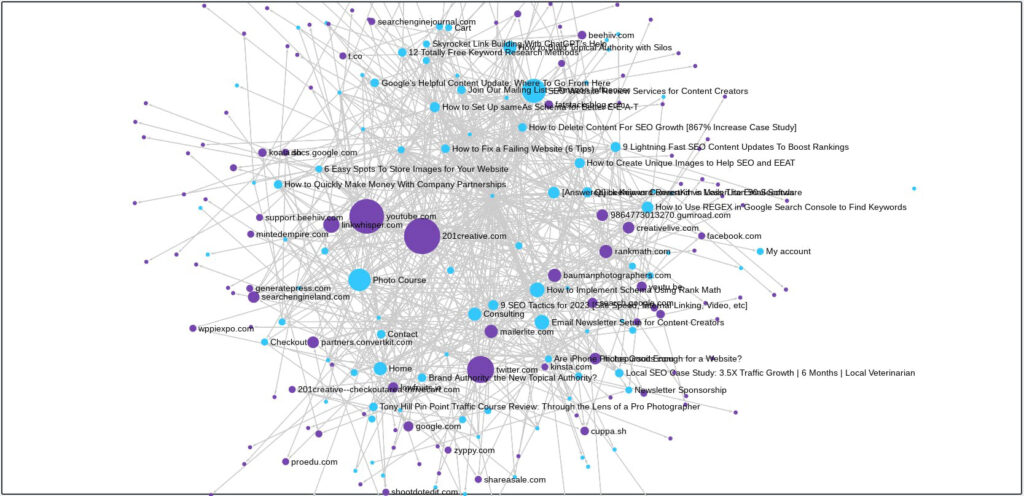
Link Whisper’s Visual Link Maps are a powerful new feature that provides a bird’s-eye view of your internal and external linking structure. I love data and spreadsheets, but seeing links laid out visually has opened up new insights that I couldn’t spot before.
Why Are Visual Maps So Helpful?
- Get the Big Picture FAST With the All Links Map, I can see how each page on my site performs for both internal and external links. I can immediately tell which pages have a lot of links pointing to them, and which pages are weak in that department. This is a game-changer for spotting pages that need more link love to rank better.
- Easier Internal Link Management Link Whisper makes it ridiculously simple to add internal links using the Visual Map. If I spot an under-linked page (represented by a small dot), I can right-click and instantly start building internal links to it. It takes the guesswork out of finding where to add links and makes the process fast and intuitive.
- Clean Up Outdated External Links Have you ever linked out to a site that no longer exists, or that you’d rather not be associated with? The Outbound External Links Map shows all the external sites your pages are linking to. From here, you can easily spot outdated or unwanted links and remove them with a click—no need to manually edit each page.
- Fix Orphaned Pages Quickly Orphaned pages are a huge missed opportunity for SEO. The Inbound Internal Links Map makes it easy to find these neglected pages, represented as tiny dots on the outskirts of the map. You can quickly add internal links and bring those pages back into the fold, improving their performance in search results.
- Identify Link Patterns at a Glance The color-coded visual map helps you see link patterns you might miss in a spreadsheet. You’ll get a clearer view of how your pages connect internally and externally, making it easier to spot structural issues and opportunities for improvement.
A Real-Life Example
On my own site, the Visual Map quickly showed me that my most linked-to page wasn’t the one getting the most traffic (a surprise!). It was a service page that I hadn’t realized was receiving so much internal link equity.
On the flip side, my most trafficked blog post had very few internal links pointing to it. Without the Visual Map, I might have missed that completely!
All Links Map Breakdown
- Blue lines: Internal links pointing to the selected page.
- Green lines: Internal links pointing out to other pages on your site.
- Purple lines: Outbound links to external websites.
This clear visual representation gives me a high-level view of my entire site’s linking structure, helping me identify SEO opportunities faster than ever before.
Step 5: Automate Keyword-Based Internal Linking
While I don’t personally use Link Whisper’s auto-linking feature, many site owners swear by it. This feature allows you to automatically insert internal links based on specific keywords. For example, every time the phrase “email marketing” appears in a post, Link Whisper can automatically link to your ultimate guide on the topic.

This is particularly useful if your site has a lot of content and you’re finding it difficult to manually keep track of linking opportunities.
Again, I don’t use it, so I won’t spend any more time on it.
Step 6: Audit Your Internal Links and Fix Mistakes
It’s easy to make mistakes with internal linking—especially when it comes to anchor text. A common issue I see is using generic anchor text across multiple articles. This dilutes the value of your links and can confuse search engines about what your page is actually about.
Here’s a better approach: audit your internal links regularly to ensure that:
- Anchor text is specific and relevant.
- Links are pointing to targeted, high-priority pages.
- You aren’t linking to the same page with duplicate anchor text across your site.
Link Whisper’s audit features allow you to easily see where your links are coming from and how effective they are. If you find any mistakes, you can quickly edit or delete them directly from the dashboard.
Step 7: Add Internal Links to Existing and New Posts
The beauty of Link Whisper is that it helps you add internal links to older articles, as well as new ones you’re about to publish. Whether you’re optimizing an older post that’s gained traction or making sure your latest piece of content is linked throughout your site, this plugin makes it easy.
The process is simple:
- Open up the post you want to optimize.
- Scroll down to see suggested links based on related content on your site.
- Customize the anchor text and confirm the link—no need to jump between tabs or sift through content manually.

Step 8: Reporting Features You Should Be Using
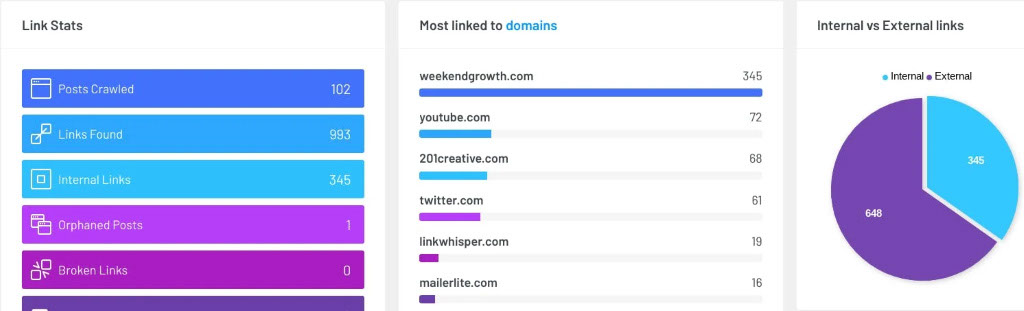
Link Whisper’s reporting tools are game-changers (yes, true story). From tracking which pages have the most internal links to identifying orphan posts that need attention, the insights provided can give you a clear roadmap of where to focus your efforts.
A quick hack: Export your link reports into a CSV file and analyze it in a spreadsheet. This lets you track patterns and see which articles need more love, while also giving you a bird’s eye view of your overall internal linking strategy.
Step 9: Hand Off the Task to an Assistant
Let’s be honest—internal linking is something you don’t need to be doing yourself once you’ve mastered the basics.
Link Whisper’s intuitive interface means that even a VA or an assistant can handle the bulk of your internal linking for you. Just share this tutorial, and they’ll be able to do it with little to no oversight from you.
Best Practices for Internal Linking
Internal linking is a must and can really help your readers and your SEO. But if you go overboard or get sloppy with it, you could end up confusing search engines and frustrating your visitors. To help you strike the perfect balance, here are a few of my best practices to keep in mind.
1. Use Descriptive Anchor Text
One of the biggest mistakes I see when it comes to internal linking is vague or generic anchor text.
For example, phrases like “click here” or “read more” don’t tell Google (or your readers) anything about what’s on the other side of the link.
Instead, use descriptive anchor text that’s specific to the topic of the linked page.
For example, if you’re linking to a post about optimizing for on-page SEO, make sure your anchor text includes something like “on-page SEO strategies” or “SEO optimization tips.”
2. Ensure Links Are Relevant
Internal links should always serve a purpose. Don’t just add them for the sake of it.
Each link should point to content that enhances the user’s experience by providing additional information or answering a related question.
Ask yourself: Does this link help my readers dive deeper into a topic they care about? If the answer is yes, you’re on the right track.
3. Balance Your Links
There’s a sweet spot when it comes to the number of internal links. Too few, and you’re missing out on SEO opportunities. Too many, and your page could look cluttered or spammy.
A good rule of thumb is to include around 3-5 internal links per 1,000 words of content, but don’t feel tied to that exact number. Cyrus Sheppard did a fantastic study on the best number of internal links to add to an article, and I interviewed him all about it.
Focus on adding links where they feel natural and beneficial. Always prioritize quality over quantity.
4. Avoid Repetitive Linking
It’s tempting to keep linking to the same page multiple times within a post, especially if it’s an important one. But doing so can dilute the value of each link.
Plus, Google and your readers don’t need multiple prompts to visit the same page—they’ll get the hint the first time.
Stick to one, maybe two, internal links to the same page in a single post, and focus on diversifying where those links go.
By following these best practices, you’ll not only improve your internal linking strategy but also create a better experience for your readers and a more SEO-friendly site overall.
Ready to Supercharge Your Internal Links?
If you’re not already using Link Whisper, now is the perfect time to start. Get $20 off Link Whisper – use code “WEEKENDGROWTH” if you want to give it a shot.
This tool saves me and my agency hours by helping you optimize your internal linking strategy and implementation. Plus, with the Visual Link Maps, you’ll gain a whole new perspective on your site’s linking structure.
Best of luck with your internal linking, and don’t hesitate to reach out if you need support!